Set up Wi-Fi on a Windows laptop
Takes about three minutes. You need your WRA username and password. Works on Windows 10 and Windows 11.
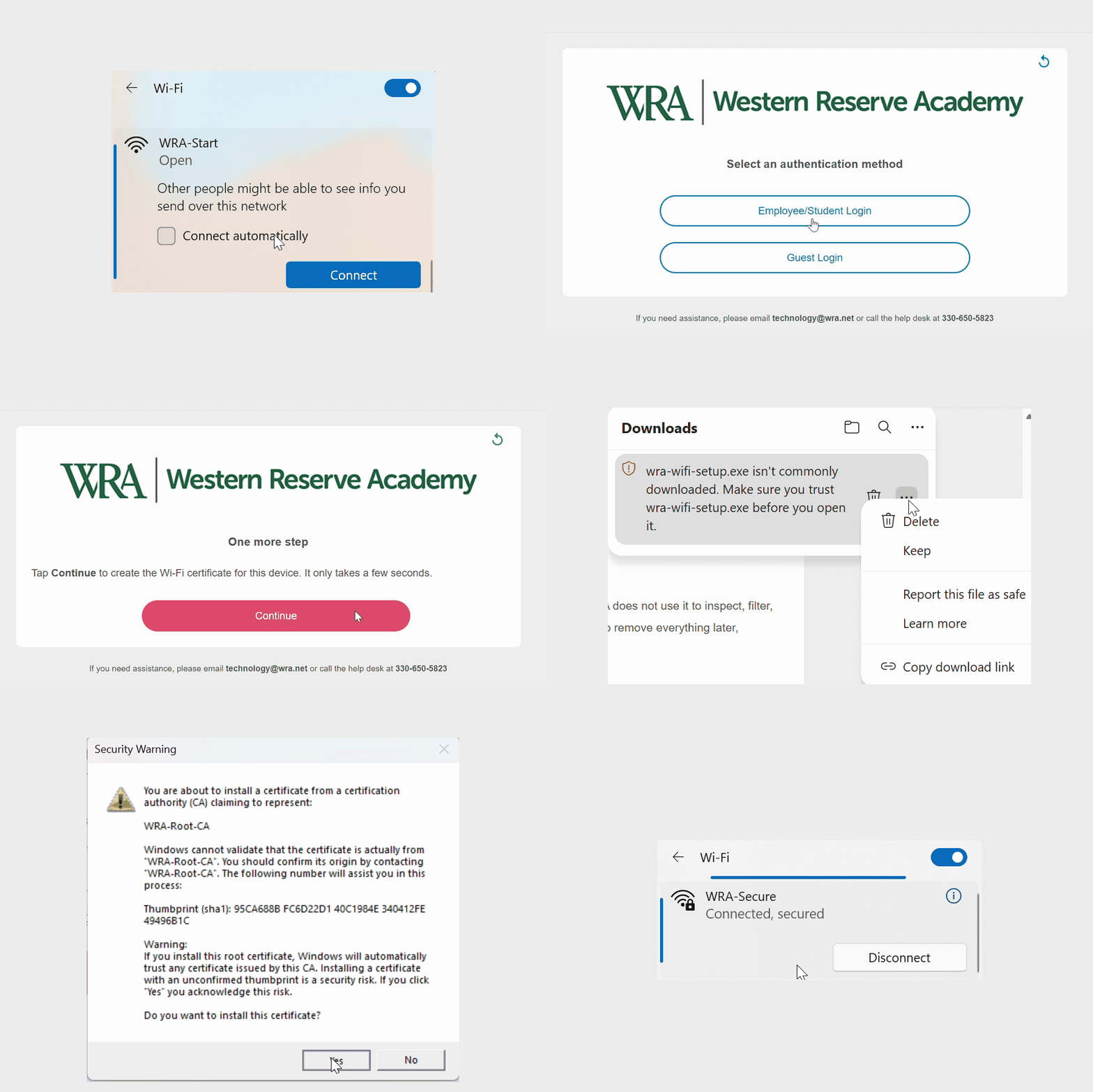
1. Join WRA-Start
Click the Wi-Fi icon in the taskbar, choose WRA-Start and click Connect. There is no password.
Your browser opens the sign-in page by itself. If it doesn't within a few seconds, click Open browser and connect under WRA-Start in the Wi-Fi list, or open a browser and go to pf.wra.net.
2. Sign in
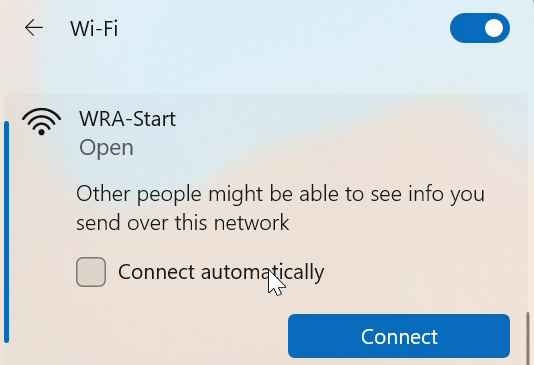
Read the short acceptable-use note, scroll to the bottom and click I accept the terms.
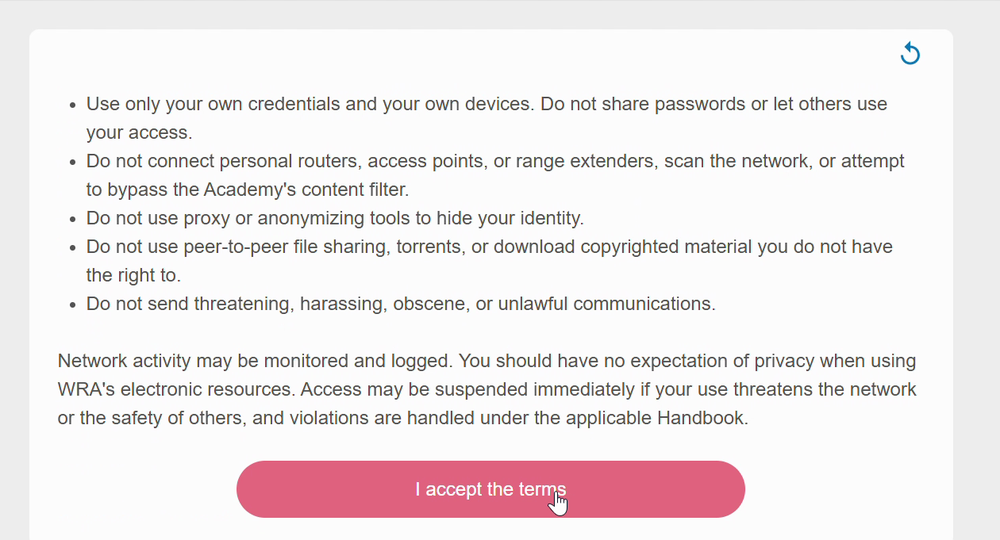
Click Employee/Student Login.
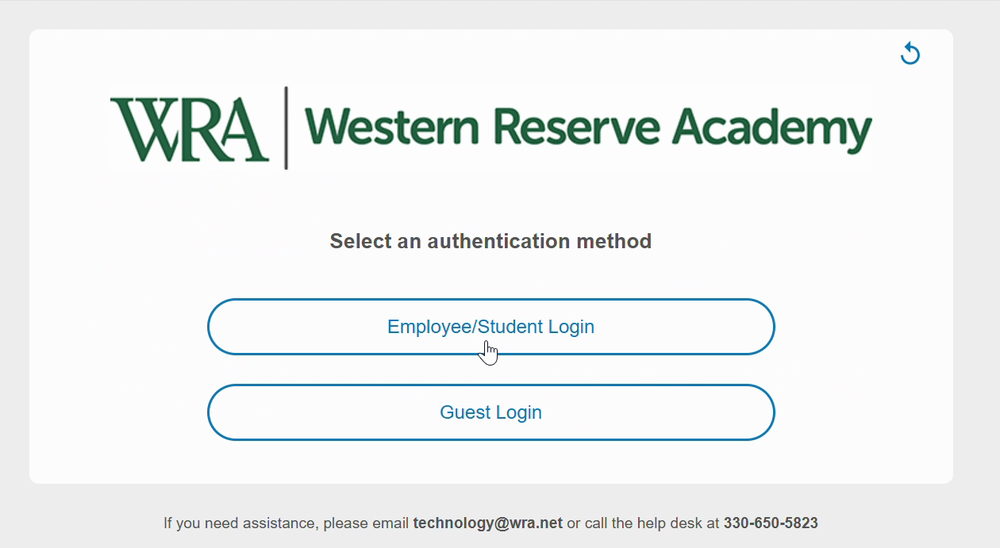
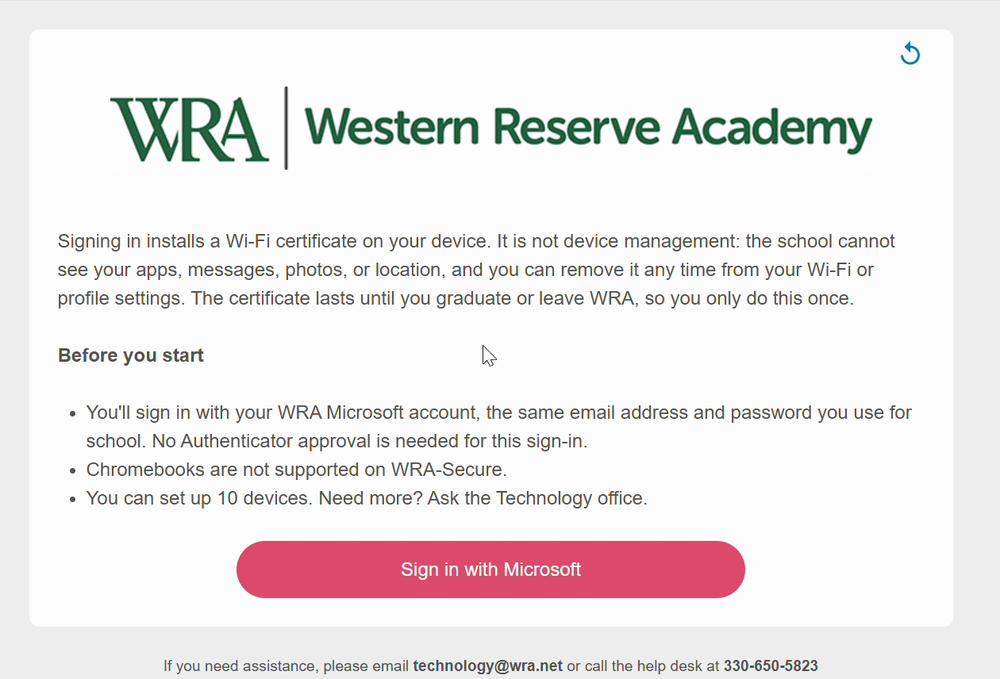
The next page explains what the setup does. Click Sign in with Microsoft.
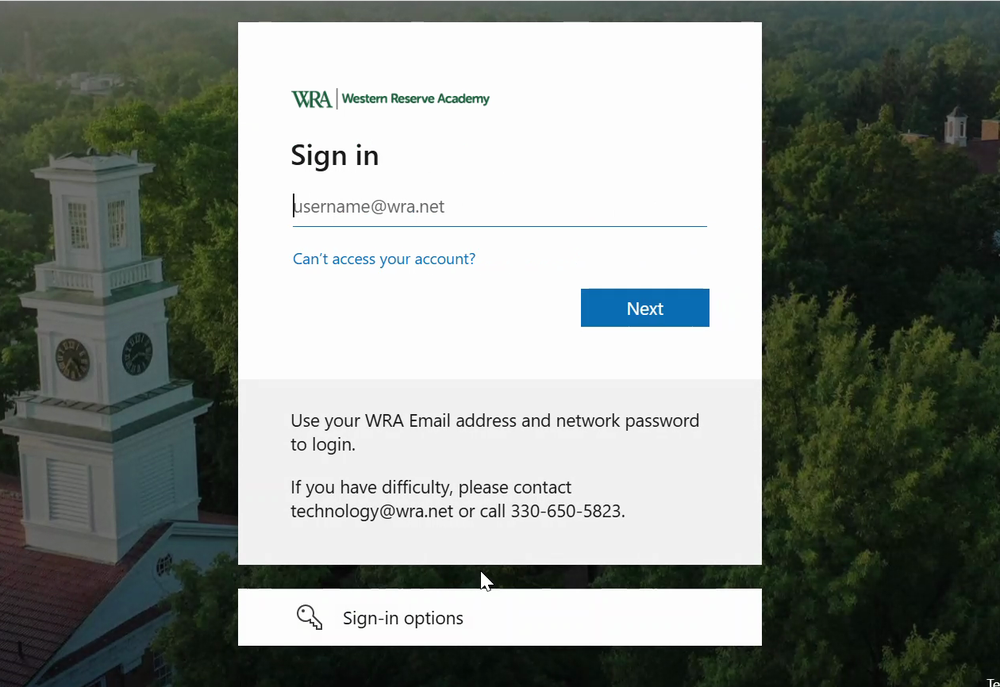
Sign in with your WRA email address and password, for example ellsworthj@wra.net. You will not be asked for an Authenticator code here. If it asks Stay signed in?, either answer is fine.
3. Create the certificate
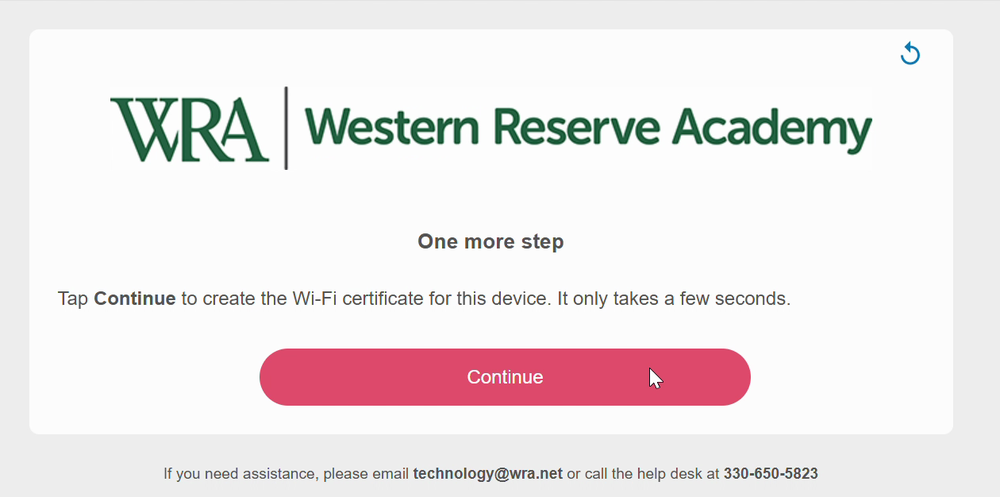
On the One more step page, click Continue.
4. Download WRA Wi-Fi Setup
On the Almost done page, click Download WRA Wi-Fi Setup. The page lists the same steps as below.
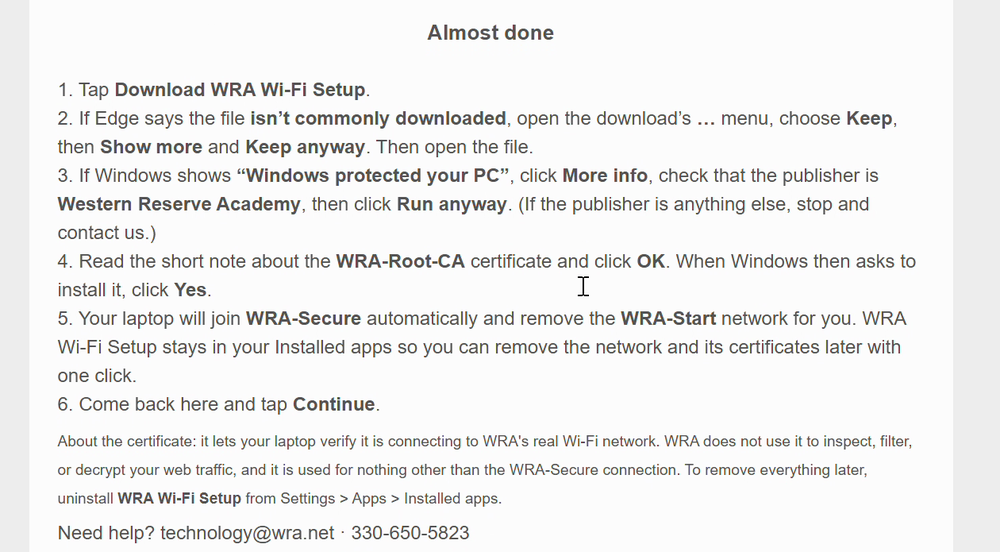
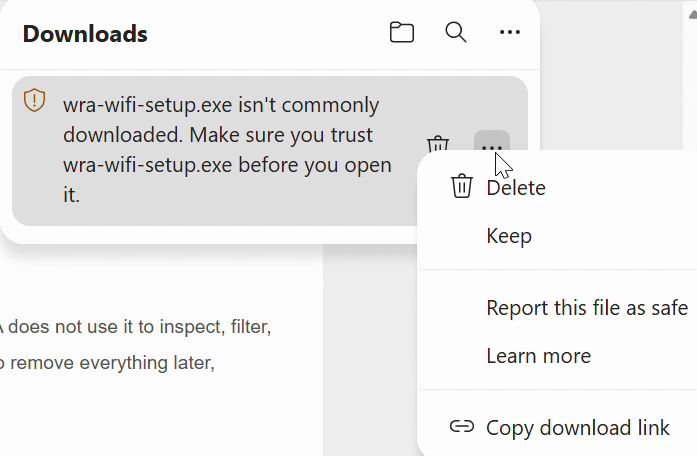
If Edge says wra-wifi-setup.exe isn't commonly downloaded: in the Downloads list, click the … next to the file and choose Keep.
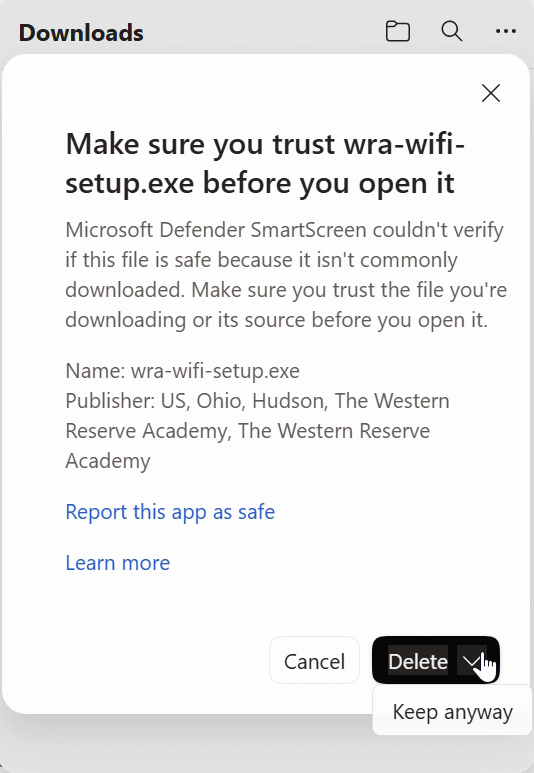
Edge asks you to make sure you trust the file. Check that the publisher includes The Western Reserve Academy, then click the arrow next to Delete and choose Keep anyway. Edge shows this for any new app it hasn't seen many times yet.
Then click Open file under wra-wifi-setup.exe in the Downloads list.
If you see "Windows protected your PC" instead: click More info, check that the publisher is Western Reserve Academy, then click Run anyway.
5. Approve the certificate
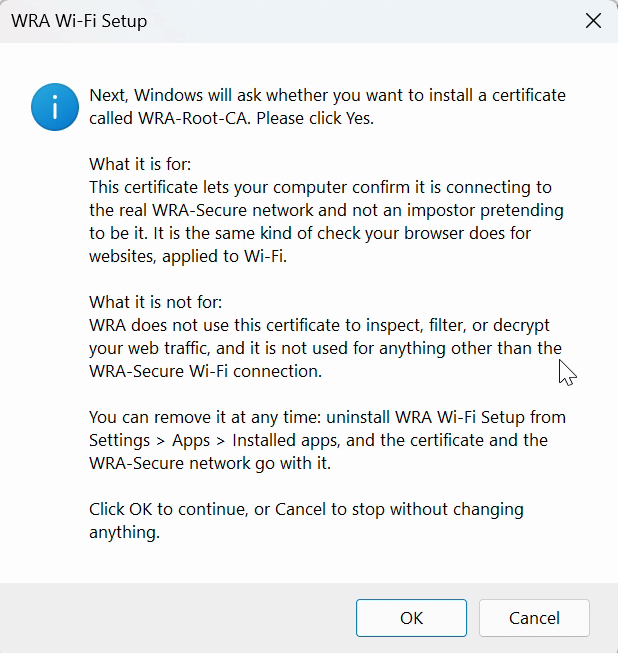
WRA Wi-Fi Setup explains that Windows is about to ask about a certificate called WRA-Root-CA. Click OK.
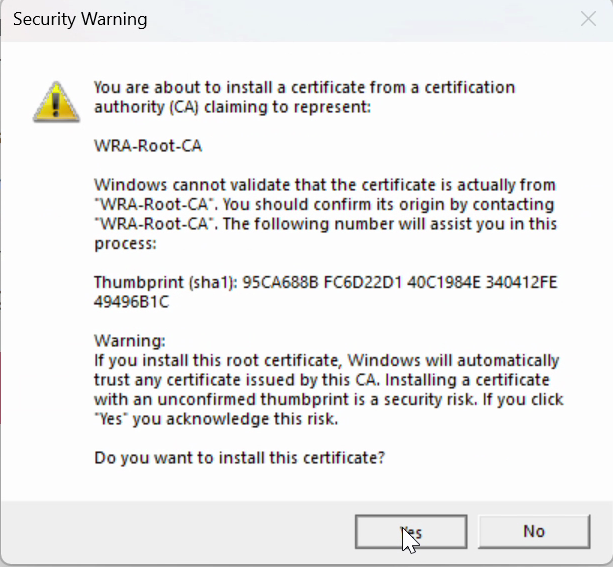
Windows shows a Security Warning about installing a certificate from WRA-Root-CA. Click Yes. This certificate only lets your laptop recognize the WRA Wi-Fi network. WRA does not use it to filter, inspect or interfere with anything you do online.
6. Done
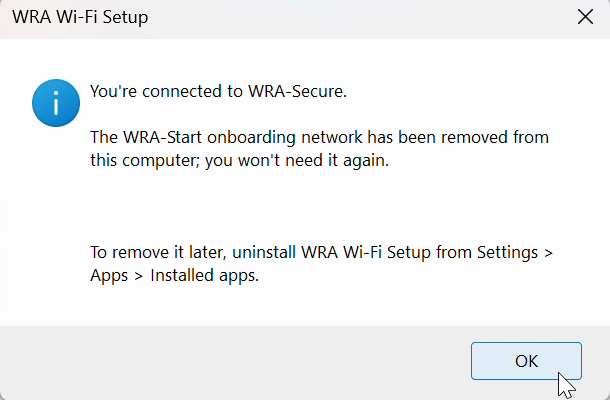
WRA Wi-Fi Setup connects you to WRA-Secure and removes WRA-Start from your saved networks so your laptop doesn't drift back to it. When it says You're connected to WRA-Secure, click OK, then click Continue on the sign-in page.
Check the Wi-Fi icon: it should say WRA-Secure, Connected, secured.
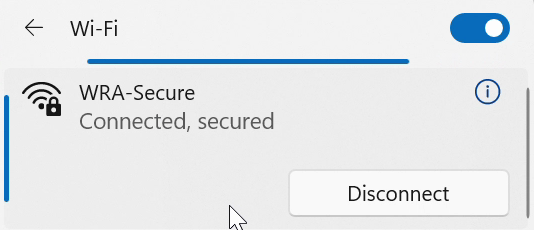
From now on the laptop joins WRA-Secure on its own.
Good to know
- WRA Wi-Fi Setup shows up under Settings → Apps → Installed apps. Uninstalling it removes the WRA-Secure network, both certificates and the app itself, if you ever want to undo everything.
- If WRA-Start is still in your saved networks afterwards: Settings → Network & internet → Wi-Fi → Manage known networks → WRA-Start → Forget.
- If you ever get a "This device is already set up" page on WRA-Start, just pick WRA-Secure from the Wi-Fi list.
Problems? See Troubleshooting.