Game consoles, smart speakers and other devices (WRA IoT)
Game consoles, smart speakers, e-readers, streaming sticks and similar gadgets can't do the certificate setup that phones and laptops use. They go on a separate network, WRA IoT. You register each device once, then connect it with your own personal Wi-Fi password.
Not for phones or laptops
Don't use these steps for your phone, laptop or tablet. Those go on WRA-Secure: see Start here.
Takes about five minutes. You need your WRA username and password, the device, and a phone or laptop to do the registration on.
1. Find the device's MAC address
Every device has a MAC address, a code that looks like A1:B2:C3:D4:E5:F6. It's usually in the device's network or Wi-Fi settings. Write it down or keep the screen open.
Where to find it on common devices
Amazon Echo: open the Alexa app and tap + in the upper right corner. When the app finds your Echo, scroll to the bottom of the network list and tap Tap to see MAC address.
Nintendo Switch: from the HOME menu, open System Settings → Internet. The MAC address is listed under System MAC Address.
Xbox One or Xbox Series X|S: open Settings → Network → Advanced settings. Use the address next to Wireless MAC.
PlayStation 4 or 5: open Settings → Network → View Connection Status. Use the address next to MAC Address (Wi-Fi).
Amazon Kindle (not Kindle Fire): on the home screen tap Menu → Settings, tap Menu again, then Device Info. Scroll down to Wi-Fi MAC Address.
Anything else: look in the device's settings for Network, Wi-Fi, About or Device info, or search the web for the device's name and "MAC address".
2. Sign in to pf.wra.net/status
On your phone or laptop, go to pf.wra.net/status and sign in with your WRA username and password. Use just your username, without "@wra.net".
3. Register the device
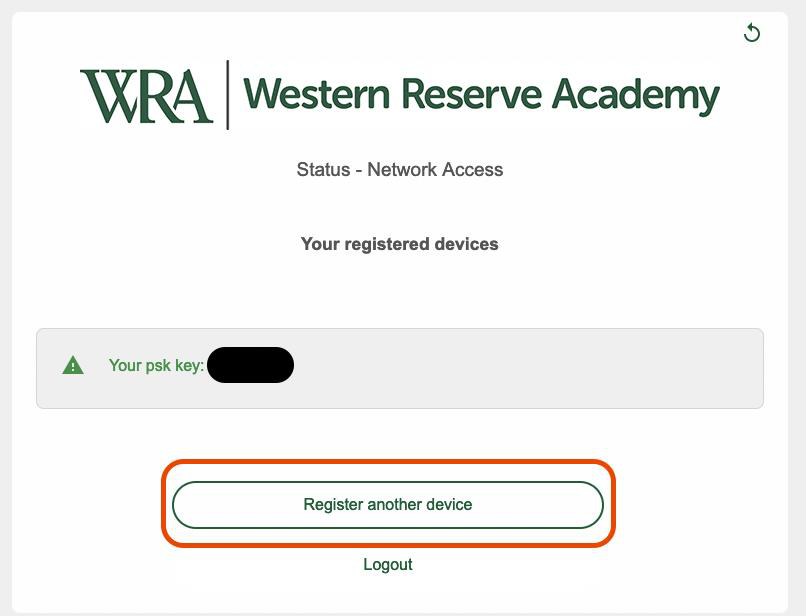
Click Register another device at the bottom of the page.
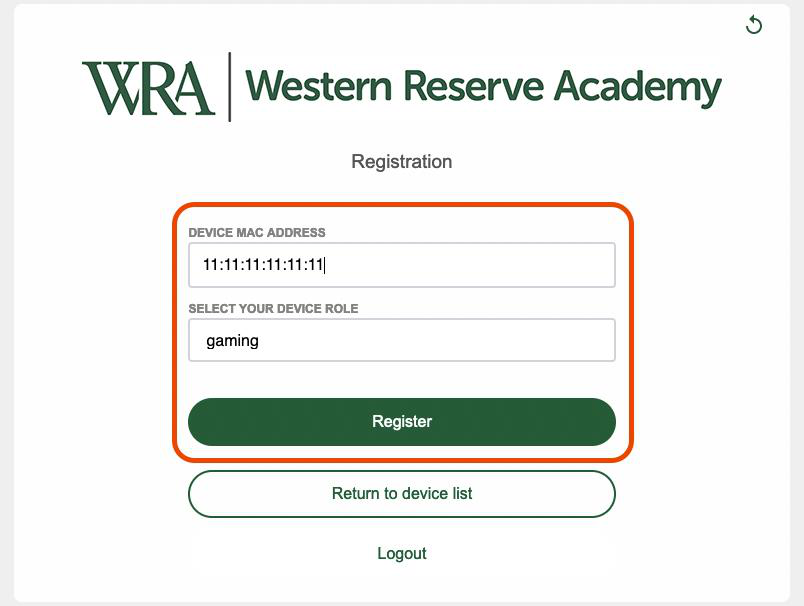
Type the MAC address in Device MAC address, choose the kind of device under Select your device role, and click Register.
4. Connect the device to WRA IoT
Back on the main page, the device appears under Your registered devices. Your personal Wi-Fi password is shown at the bottom as Your psk key.
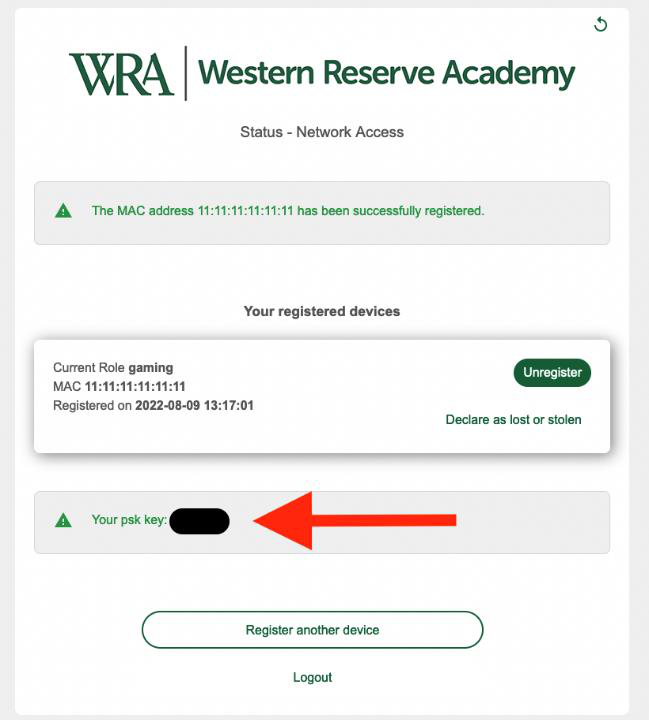
On the device, join the WRA IoT network and enter that password.
The password only works for devices you have registered. If the device won't connect, check that the MAC address you registered matches the one in the device's settings.
Good to know
- One password for all your devices. Your psk key is yours alone and works for every device you register. Keep it to yourself.
- Turn off private or random Wi-Fi addresses on the device if it has that setting. If the device changes its MAC address, it won't match the one you registered.
- Got rid of a device? Sign in to pf.wra.net/status and click Unregister next to it. If it was lost or stolen, click Declare as lost or stolen.
Questions? Email technology@wra.net or call 330-650-5823.